OpenAFS for Windows 1.5.20
Release Notes
The Andrew File System (AFS) is a location-independent file system that uses a local cache to increase its performance. An AFS client accesses files anonymously or via a Kerberos authentication. The global AFS is partitioned into cells. The AFS cell is a collection of AFS volumes that are administered by a common entity. AFS cells can be administered by a department even when the Kerberos realm used for local authentication is managed by a much larger organization. AFS clients and servers take advantage of Kerberos cross realm authentication to enable authenticated access by entities located outside the local realm. Authorization is enforced by the use of directory level access control lists which can consist of individual or group identities.
The AFS volume is a tree of files and sub-directories. AFS volumes are created by administrators and are joined to an AFS cell via the use of a mount point. Once a volume is created, users can create files and directories as well as mount points and symlinks within the volume without regard for the physical location of the volume. Administrators can move the volume to another server as necessary without the need to notify users. In fact, the volume move can occur while files in the volume are in use.
AFS volumes can be replicated to read-only copies. When accessing files from a read-only replica, clients will read all of the data from a single replica. If that replica becomes unavailable, the clients will failover to any replica that is reachable. Users of the data are unaware of where the replicas are stored or which one is being accessed. The contents of the replicas can be updated at any time by releasing the current contents of the source volume.
OpenAFS for Windows (OAFW) provides AFS client access Microsoft Windows operating systems. It strives to maintain transparency such that the user is unaware of the distinction between the use of AFS and Microsoft Windows file shares. OAFW can be part of a single sign-on solution by allowing credentials for a Kerberos principal to be obtained at logon and for that principal to be used to obtain AFS tokens for one or more cells. Although OAFW is implemented as a locally installed SMB to AFS gateway, OAFW maintains the portability of file paths by its use of the \\AFS UNC server name.
OpenAFS is the product of an open source development effort begun on October 31 2000. OpenAFS is maintained and developed by a group of volunteers with the support of the user community. If you use OpenAFS as part of your computing infrastructure please contribute to its continued growth.
4. How to Debug Problems with OpenAFS for Windows:
6. How to Contribute to the Development of OpenAFS for Windows
1. Installer Options
It can be installed either as a new installation or an upgrade from previous versions of OpenAFS for Windows or IBM AFS for Windows. Installers are provided in two forms:
1. an executable (.exe) that is built using the Nullsoft Scriptable Installation System, or
2. a Windows Installer package (.msi) that is built using WiX and can be customized for organizations via the use of MSI Transforms (see MSI Deployment Guide)
2. System Requirements
2.1 Supported Operating Systems
· Microsoft Windows 2000 Workstation
· Microsoft Windows 2000 Server
· Microsoft Windows XP Home
· Microsoft Windows XP Professional
· Microsoft Windows XP 64
· Microsoft Windows 2003 Server (32-bit and 64-bit Intel)
· Microsoft Windows 2003 R2 Server (32-bit and 64-bit Intel)
· Microsoft
Windows
2.1.1 Unsupported Operating Systems
· Microsoft Windows 95
· Microsoft Windows 98
· Microsoft Windows 98 OSR2
· Microsoft Windows ME
· Microsoft NT
Older releases of OpenAFS are available for download if unsupported operating systems must be used. The last version of OpenAFS with support for Win9x is 1.2.2b. The last version with support for Windows NT 4.0 is 1.2.10.
2.2 Disk Space
Up to 60mb required for the OpenAFS binaries plus 100MB for the default AFSCache file. (The size of the AFSCache file may be adjusted via the Registry after installation.)
2.3 Additional Software Packages
MIT Kerberos for Windows 2.6.x or 3.1.x if Kerberos v5 authentication support is desired.
3. Operational Notes
3.1. Requirements for Kerberos v5 Authentication
The Kerberos v4 infrastructure on which the OpenAFS 1.2 series is reliant is no longer secure. Cross-realm Kerberos is very important in the AFS context and most sites have or are migrating to Kerberos v5 environments. The OpenAFS 1.4 series (and later) integrates with MIT Kerberos for Windows 2.6.5 and above to support Kerberos v5 authentication including automatic renewal of AFS tokens and single sign-on via the Microsoft Windows Kerberos Logon Service.
The recommended version of MIT Kerberos for Windows is 3.2. KFW 3.2 includes Network Identity Manager 1.2 which integrates with the AFS Provider installed as part of OpenAFS for Windows.
When KFW is installed, the OpenAFS for Windows client will obtain Kerberos v5 tickets and use them as tokens without modification. The OpenAFS client requires that all of the AFS Servers with which it communicates support the use of Kerberos v5 tickets as tokens. If Kerberos v5 based tokens are presented to an AFS server that does not support them, the server will be unable to communicate with the client when tokens are present. Kerberos v5 based tokens are supported by OpenAFS release 1.2.8 or later. IBM Transarc servers do not support Kerberos v5.
3.1.1. Active Directory
Microsoft Windows Active Directory can be used as a Kerberos v5 KDC in conjunction with OpenAFS. There are two things to consider when using an Active Directory as the Kerberos realm that issues the AFS service ticket. First, the Kerberos v5 tickets issued by Active Directory can be quite large when compared to tickets issued by a traditional KDC due to the incorporation of authorization data (the Microsoft PAC). If the issued tickets are larger than 344 bytes, the OpenAFS 1.2 servers will be unable to process them and will issue a RXKADBADTICKET error. OpenAFS 1.4 (and beyond) servers can support the largest tickets that Active Directory can issue. Second, the Kerberos v5 tickets issued by Windows 2003 Active Directory are encrypted with the DES-CBC-MD5 encryption type (enctype). OpenAFS 1.2 servers only support the DES-CBC-CRC enctype. As a result, OpenAFS 1.2 servers cannot process the resulting Kerberos v5 tokens. Windows 2000 Active Directory issued tickets with the DES-CBC-CRC enctype.
Microsoft has documented in Knowledge Base article 832572
a new NO_AUTH_REQUIRED flag that can be set on the account mapped to the AFS
service principal. When this flag is
set, the PAC authorization data will not be included in the ticket. Setting this flag is recommended for all
accounts that are associated with non-Windows services and that do not
understand the authorization data stored in the
3.1.2. Using the krb524 service
Some organizations which have AFS cell names and Kerberos realm names which differ by more then just lower and upper case rely on a modification to krb524d which maps a Kerberos v5 ticket from realm FOO to a Kerberos v4 ticket in realm BAR. This allows user@FOO to appear to be user@bar for the purposes of accessing the AFS cell. As of OpenAFS 1.2.8, support was added to allow the immediate use of Kerberos v5 tickets as AFS (2b) tokens. This is the first building block necessary to break away from the limitations of Kerberos v4 with AFS. By using Kerberos v5 directly we avoid the security holes inherent in Kerberos v4 cross-realm. We also gain access to cryptographically stronger algorithms for authentication and encryption.
Another reason for using Kerberos v5 directly is because the krb524 service runs on a port (4444) which has become increasingly blocked by ISPs. The port was used to spread a worm which attacked Microsoft Windows in the summer of 2003. When the port is blocked users find that they are unable to authenticate.
Replacing the Kerberos v4 ticket with a Kerberos v5 ticket is a win in all situations except when the cell name does not match the realm name and the principal names placed into the ACL’s are not the principal names from the Kerberos v5 ticket. To support this transition, OpenAFS for Windows 1.4 adds a new registry value, Use524, to force the use of krb524d. However, the availability of this option should only be used by individuals until such time as their organizations can provide a more permanent solution.
3.1.3. Network Identity Manager Provider
As of release 1.5.9, OpenAFS for Windows includes a Network Identity Manager Provider for obtaining AFS tokens. This plug-in is a contribution from Secure Endpoints Inc. Network Identity Manager is a multiple identity credential management tool that ships with MIT Kerberos for Windows version 3.0 and above. The OpenAFS plug-in requires MIT Kerberos for Windows version 3.1 or above. Version 3.2 is required for the best user experience.
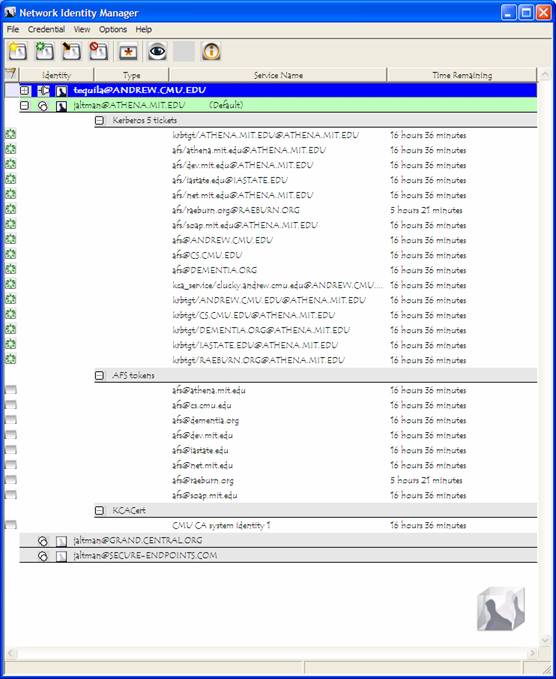
The Network Identity Manager replaces the former KFW ticket manager, Leash”, and when combined with the OpenAFS Provider, it is intended to be used as a replacement for the AFS System Tray Tool (afscreds.exe). Unlike both Leash and the AFS System Tray Tool, Network Identity Manager with the OpenAFS Provider can easily manage AFS tokens for multiple cells from one or more Kerberos v5 identities.
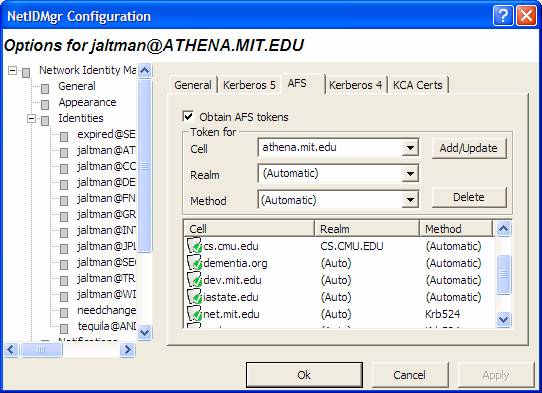
The AFS configuration panel for each Kerberos v5 identity is used to configure which cells credentials should be obtained for and how they should be obtained. If the cell to realm mapping cannot be automatically determined, it can be explicitly specified. If the cell does not support Kerberos v5 tickets as tokens, then a krb524 service can be configured.
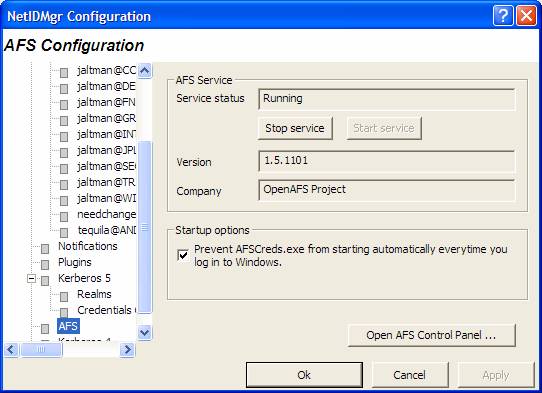
The OpenAFS Provider configuration panel can be used to check the status of the AFS Client Service and its version. An optional checkbox is provided that will prevent the AFS System Tray Tool from being started by Windows after login. A shortcut to the OpenAFS Control Panel is also provided.
3.2. Use of the Microsoft Loopback Adapter by the AFS Client Service
By itself the OpenAFS Client Service does not provide robust behavior in a plug-n-play network environment. Changes to the number of network adapters or their assigned IP addresses will cause the service to terminate unexpectedly. To avoid this behavior OpenAFS for Windows installs a single instance of the Microsoft Loopback Adapter (MLA) on the machine. With the MLA installed, the OpenAFS Client Service will not be affected by the configuration changes of other network adapters installed on the system.
The MLA is installed with a name of "AFS" and a pre-assigned IP address in the 10.x.x.x range. The MLA is bound to the “Client for Microsoft Networks” service and not bound to the “File and Printer Sharing for Microsoft Networks”. If the MLA is unbound to "Client Microsoft Networks", the OpenAFS Client Service will become inaccessible when the machine is disconnected from the network. If the MLA is bound to "File and Printer Sharing ..." there will be a service type collision between the name "AFS" and the name of the machine on the MLA's IP Address that will result in the OpenAFS client service becoming inaccessible and the "NET VIEW \\AFS" command will return a "System Error 52" message. To correct the problem:
· stop the AFS Client Service
· bind the "Client for Microsoft Networks" to the MLA
· unbind "File and Printer Sharing for Microsoft Networks" from the MLA
· Disable and then re-enable the MLA
· start the AFS Client Service
When the MLA is not installed the unique NETBIOS name published by OpenAFS SMB server is "MACHINE-AFS". One of the benefits of using the MLA is that the NETBIOS name does not have to be published on any adapter other than the MLA. Therefore the chosen name is no longer required to be unique. Instead the NETBIOS name associated with the AFS Client Service is simply "AFS" and portable UNC paths of the form \\AFS\cellname\path can now be used on all machines.
3.3. Using Freelance (Dynamic Root) Mode to Improve Mobility
Traditionally, when the OpenAFS Client Service starts it must be able to access the "root.afs" volume of the default cell. The "root.afs" volume contains the set of mount points to the "root.cell" volumes of various cells the administrator of the default cell believes should be accessible. If the "root.afs" volume is inaccessible when the client service is started, the service will terminate unexpectedly. Since many users now use laptops or otherwise operate in disconnected environments in which a VPN may be required to access the cell's servers, it is often the case that the "root.afs" volume for the default cell is not reachable and the OpenAFS Client Service will not successfully start.
To allow the OpenAFS Client Service to operate in these environments, Freelance mode dynamically constructs a fake "root.afs" volume from mount points and symlinks stored in the local registry.
The content of the fake “root.afs” volume is dynamically modified as cells are accessed. When the fake "root.afs" volume is initially constructed it will only contain two mount points: a regular path and read-write path mount point used to access the "root.cell" volume of the default AFS cell. Any attempt to access a valid cell name will result in a new mount point being created in the fake "root.afs" volume. If the cellname begins with a "." the mount point will be a read-write path; otherwise the mount point will be a regular path. These mount points are preserved in the registry at key:
HKLM\SOFTWARE\OpenAFS\Client\Freelance
Additional mount points may be manually created using the "fs mkmount" command. Mount points may be removed using the "fs rmmount" command.
>fs mkmount \\AFS\athena.mit.edu root.cell athena.mit.edu
>fs mkmount \\AFS\.athena.mit.edu root.cell athena.mit.edu -rw
>fs rmmount \\AFS\athena.mit.edu
>fs rmmount \\AFS\.athena.mit.edu
Symlinks may also be created within the Freelance “root.afs” volume.
>symlink make \\afs\link \\afs\athena.mit.edu\user\j\a\jaltman
>symlink list \\afs\link
'\\afs\link' is a symlink to 'athena.mit.edu\user\j\a\jaltman'
>symlink rm \\afs\link
The symlinks are stored in the registry at:
HKLM\SOFTWARE\OpenAFS\Client\Freelance\Symlinks
3.4. Locating AFS Volume Database Servers via DNS
The OpenAFS for Windows client will use DNS AFSDB records to discover the location of AFS Volume Database servers when entries for the cell are not present in the client's CellServDB file (\%PROGRAMFILES%\OpenAFS\Client\CellServDB).
3.5. Obtaining AFS Tokens as a Integrated Part of Windows Logon
OpenAFS for Windows installs a WinLogon Network Provider to provide Single Sign-On functionality (aka Integrated Logon.) Integrated Logon can be used when the Windows username and password match the username and password associated with the default cell's Kerberos realm. For example, if the Windows username is "jaltman" and the default cell is "athena.mit.edu", then Integrated Logon can be successfully used if the windows password matches the password assigned to the Kerberos principal "jaltman@ATHENA.MIT.EDU". The realm “ATHENA.MIT.EDU” is obtained by performing a domain name to realm mapping on the hostname of one of the cell's Volume Database servers.
Integrated Logon is required if you desire the ability to store roaming user profiles within the AFS file system. OpenAFS does not provide tools for synchronizing the Windows and Kerberos user accounts and passwords.
When KFW is configured, Integrated Logon will use it to obtain tokens. Use of KFW for Integrated Logon can be disabled via the EnableKFW registry value. Use of the krb524 service can be configured via the Use524 registry value.
Integrated Logon will not preserve the Kerberos v5 tickets. KFW 3.1 and above implements that functionality.
Integrated Logon does not have the ability to cache the user's username and password for the purpose of obtaining tokens if the Kerberos KDC is inaccessible at logon time.
Integrated Login supports the ability to obtain tokens for multiple cells. For further information on how to configure this feature read about the TheseCells value.
3.6. AFS System Tray Command Line Options
The AFS System Tray Tool
(afscreds.exe) has been deprecated in favor of Network Identity Manager. afscreds.exe will be removed from the OpenAFS
in a future release.
The AFS System Tray tool (afscreds.exe) supports several command line options:
-A = autoinit
-E = force existing afscreds to exit
-I = install startup shortcut
-M = renew drive maps
-N = IP address change detection
-Q = quiet mode. do not display start service dialog
if afsd_service is not already running
-S = show tokens dialog on startup
-U = uninstall startup shortcut
-X = test and do map share
-Z = unmap drives
autoinit will result in automated attempts to acquire AFS tokens when afscreds.exe is started. afscreds.exe will attempt to utilize tickets stored in the MSLSA credentials cache; any existing CCAPI credentials cache; and finally display an Obtain Tokens dialog to the user. When used in combination with IP address change detection, afscreds.exe will attempt to acquire AFS tokens whenever the IP address list changes and the Kerberos KDC is accessible.
The renew drive maps option is used to ensure that the user drive maps constructed via the OpenAFS tools (not NET USE) are re-constructed each time afscreds.exe is started.
By default afscreds.exe is configured by the OpenAFS.org installers to use “-A -N -M -Q” as startup options. Currently, there is no user interface to change this selection after install time although these options may be altered via the registry on either per machine or per user basis. See AfscredsShortcutParams in Appendix A.
3.7. The “AFS Client Admins” Authorization Group
The OpenAFS for Windows client supports a local Windows authorization group named "AFS Client Admins". This group is used in place of the "Administrators" group to determine which users are allowed to modify the AFS Client Service configuration via the AFS Control Panel (afs_config.exe) or fs.exe command line tool. The following fs.exe commands are now restricted to members of the "AFS Client Admins" group:
· checkservers with a non-zero timer value
· setcachesize
· newcell
· sysname with a new sysname list
· exportafs
· setcell
· setserverprefs
· storebehind
· setcrypt
· cscpolicy
· trace
· minidump
The creation or removal of mount points and symlinks in the Freelance “root.afs” volume are also restricted to members of the “AFS Client Admins” group.
The initial membership of the "AFS Client Admins" group when created by the installer is equivalent to the local "Administrators" group. If a user is added to the "Administrators" group after the creation of the "AFS Client Admin" group, that user will not be an AFS Client Administrator. Only users that are members of the "AFS Client Admins" group are AFS Client Administrators. The local "SYSTEM" account is an implicit member of the "AFS Client Admins" group.
Setting the default sysname for a machine should be done via the registry and not via "fs sysname".
3.8. OpenAFS support for UNC paths
The OpenAFS client supports UNC paths everywhere. UNC paths provide a canonical name for resources stored within AFS. UNC paths should be used instead of drive letter mappings whenever possible. This is especially true when specifying the location of roaming profiles and redirected folders.
Power users that make extensive use of the command line shell, cmd.exe, should consider using JP Software's 4NT or Take Command command processors. Unlike cmd.exe, the JPSoftware shells fully support UNC paths as the current directory. JPSoftware added special recognition for OpenAFS to its command shells, 4NT 7.0 and Take Command 7.0. AFS paths can be entered in UNIX notation (e.g., /afs/openafs.org/software), space utilization reports the output of the volume status for the specified path, and many AFS specific functions and variables have been added to the command language.
JPSoftware's web site is http://www.jpsoft.com.
3.9. aklog.exe
The OpenAFS Client ships with its own version of aklog.exe which should be used in preference to those obtained by other sources. The OpenAFS aklog.exe supports Kerberos v5 as well as the ability to auto-generate AFS IDs within foreign PTS databases.
Usage: aklog [-d] [[-cell | -c] cell [-k krb_realm]]
[[-p | -path] pathname]
[-noprdb] [-force]
[-5 [-m]| -4]
-d = output debugging information.
cell = zero or more cells for which tokens will be obtained
krb_realm = the kerberos realm of the cell.
pathname = the directory for which authentication is required
-noprdb = don't try to determine AFS ID.
-5 or -4 = use Kerberos V (default) or Kerberos IV tickets
-m = use krb524d to convert Kerberos V tickets to Kerberos IV
3.10. OpenAFS Servers on Windows are Unsupported
The AFS Server functionality provided as part of the OpenAFS install package might work but should be considered highly experimental. It has not been thoroughly tested. Any data which would cause pain if lost should not be stored in an OpenAFS Server on Windows.
3.10.1. OpenAFS Server Installation
When the OpenAFS Server is installed, the TransarcAFSServer service (bosctlsvc.exe) will be installed and configured. The TransarcAFSServer service will auto-start the traditional AFS bos server. The former AFS Server Configuration wizard makes assumptions that no longer hold true and it has therefore been disabled. However, following the instructions for installing the AFS Servers on UNIX it is possible to properly configure the AFS Servers on Microsoft Windows. The AFS Server binaries, configuration files, and log files are installed under %Program Files%\OpenAFS\Server. kaserver has been deprecated and its use is strongly discouraged. Instead, Active Directory or some other Kerberos v5 KDC should be used in its place.
3.10.2. Using the AFS Client Service when the Server is installed
A few notes on the usage of the AFS Client Service if it is going to be used with the OpenAFS AFS Server:
· Freelance mode should be disabled when the AFS Client Service is installed on the same machine as the AFS Server,. Otherwise, you will be unable to manipulate the contents of the root.afs volume for the hosted cell without constructing an explicit mountpoint to the root.afs volume from another volume.
· The AFS Server and related tools only support the built in kaserver (Kerberos IV). If kaserver is being used, MIT Kerberos for Windows should not be installed or must be disabled via the EnableKFW registry value.
· The AFS Servers are not aware of power management events nor are they aware of network configuration changes. It is strongly advised that the AFS servers be installed only on systems that will not be shutdown or suspended unexpectedly. An inadvertent shutdown will corrupt volume data.
3.11. OpenAFS Debugging Symbol files
The OpenAFS for Windows installers include Debugging Symbol files which should be installed if you are experiencing problems and need to send crash reports. This is true for both the release and the debug versions of the installers. The difference between the release and debug versions are:
· whether or not the binaries were compiled with optimization (release: yes, debug: no)
· whether or not the debug symbols are installed by default (release: no, debug: yes)
· whether
or not fs trace logging is turned on
by default (release: no, debug: yes)
· whether or not additional debug statements were compiled into the binaries (release: no, debug: yes)
3.12. Large Files (64-bit) Supported
As of release 1.5.3, OpenAFS for Windows supports files larger than 2GB. The maximum file size is now 16777216 terabytes when the AFS File Server supports large files. If the AFS File Server does not support large files, then the file size limit remains 2GB.
3.13. Encrypted AFS Network Communication
The OpenAFS for Windows installer by default activates a weak form of encrypted data transfer between the AFS client and the AFS servers. This is often referred to as "fcrypt" mode. Encrypted data transfer can be turned on or off with the “fs crypt” command. Transitions between “crypt” and “non-crypt” modes are logged to the Windows Application Event Log.
3.14. Authenticated Access to the OpenAFS Client Service
OpenAFS authenticates SMB connections using either NTLM or GSS SPNEGO (NTLM). In previous versions of OpenAFS, the SMB connections were unauthenticated which opened the door for several attacks which could be used to obtain access to another user's tokens on shared machines.
When GSS SPNEGO attempts a Kerberos v5 authentication, the Windows SMB client will attempt to retrieve service tickets for "cifs/afs@REALM" (if the loopback adapter is in use) or "cifs/machine-afs@REALM" (if the loopback adapter is not being used). It is extremely important that this service principal not exist in the KDC database as the Kerberos authentication must fail allowing automatic fallback to NTLM. When NTLM is used a special local authentication mode will be used that does not require access to the user's password. Instead, Windows will internally recognize the request as coming from a local logon session.
3.15. No More INI Files
Previous AFS clients for Windows stored configuration data in Windows .INI files. The OpenAFS client does not use Windows .INI files for the storage of configuration data. All settings are stored in the registry (see Appendix A). The CellServDB file is now stored in the %PROGRAMFILES%\OpenAFS\Client directory. The CellServDBDir registry value can be used to specify an alternative location.
OpenAFS will relocate the contents of the “afsdcell.ini” file to the new CellServDB file. OpenAFS will also import the contents of the “afs_freelance.ini” file to the Windows registry. OpenAFS will not process the contents of the “afsddbmt.ini”.
3.16. Microsoft Windows Internet Connection Firewall
The OpenAFS Client is compatible with the Internet Connection Firewall that debuted with Windows XP SP2 and Windows 2003 SP1. The Internet Connection Firewall will be automatically adjusted to allow the receipt of incoming callback messages from the AFS file server. In addition, the appropriate Back Connection registry entries are added to allow SMB authentication to be performed across the Microsoft Loopback Adapter.
3.17. Browsing AFS from the Explorer Shell and Office
The OpenAFS Client Service implements the CIFS Remote Admin Protocol which allows Explorer to browse server and share information. This significantly enhances the interoperability of AFS volumes within the Explorer Shell and Microsoft Office applications.
3.18.
Byte Range
Many applications on Windows (e.g. Microsoft Office) require the use of byte range locks applied to a file either to protect against simultaneous file access or as a signaling mechanism. OpenAFS for Windows release 1.5 (or greater) implements byte range locking within the CIFS-AFS gateway server. This support for byte range locking obtains AFS’ advisory file server locks to simulate Microsoft Windows mandatory locks. When an application opens a file, a lock will be obtained from AFS indicating that the file is in use. If the lock is a write lock, access to the file will be restricted to other applications running on the same machine as the first application to request the lock. Applications running on other machines will see the AFS full file lock and will be unable to access the file.
Most Windows applications and Windows itself opens files in shared read mode. When this is done, a read lock is applied to the file. This does not prevent shared read access across multiple machines but is used to ensure that no one writes to the file while it is in use.
As the CIFS-AFS gateway server attempts to implement Windows lock semantics on top of AFS lock semantics it is important to understand how AFS file locks work. In Windows there are no special privileges associated with obtaining file locks. If you can read or execute a file, then you can obtain shared and exclusive locks. In general, a Windows shared lock equates to an AFS read lock and a Windows exclusive lock equates to an AFS write lock. In AFS if you can write to a file, then you can obtain a write lock. However, in AFS if you can read a file it does not mean that you can obtain a read lock on it. The ability to obtain read locks is granted only if you have the lock (or ‘k’) privilege. This behavior is required in order to allow anonymous users to read files while preventing them from being able to deny access to the files to other users. OpenAFS 1.4.0 and earlier as well as all IBM AFS file servers have an implementation bug that prevents users with write privileges from being able to obtain locks without the lock privilege. When AFS serves data out of read-only volumes the file server will deny all requests for read and write locks because the contents of the volume cannot be changed by the client.
Since Microsoft Windows applications almost always attempt to obtain a temporary exclusive lock when accessing files the OpenAFS Client’s CIFS-AFS gateway implements the following semantics in order to reduce the inconvenience on end users.
- If the file is located on a read-only volume and the application requests a shared lock, the CIFS-AFS server will grant the lock request without asking the AFS file server.
- If the file is located on a read-only volume and the application opens the file with write access and requests an exclusive lock, the CIFS-AFS server will refuse the lock request and return a read only error.
- If the file is located on a read-only volume and the application opens the file with only read access and requests an exclusive lock, the CIFS-AFS server will fulfill the lock request with a read lock.
- If the file is located on a read-write volume and the application requests an exclusive lock, the CIFS-AFS server will request a write lock from the AFS file server. If granted by the file server, then the CIFS-AFS server will grant the lock request. If the request is denied due to an access denied error and the user has the lookup, read and lock privileges and the file was opened for read only access, then the CIFS-AFS server will request a read lock from the file server. If the request is denied due to an access denied error and the user has the lookup and read privileges but not the lock privilege, then the CIFS-AFS server will grant the request even though the AFS file server said ‘no’. If the user does not have at least those permissions, the CIFS-AFS server will deny the request.
- If the file is located on a read-write volume and the application requests a shared lock, the CIFS-AFS server will request a read lock from the AFS file server. If granted by the file server, then the CIFS-AFS server grants the lock request. If the request is denied due to an access denied error and the user has the lookup and read privileges but not the lock privilege, then the CIFS-AFS server will grant the request even though the AFS file server said ‘no’. If the user does not have at least those permissions, the CIFS-AFS server will deny the request.
- If multiple processes on the same machine attempt to access the same file simultaneously, the CIFS-AFS server will locally manage the granted locks and all processes will share a single lock on the AFS file server.
- If the CIFS-AFS server is unable to renew the AFS file server locks, then it will invalidate the associated file handles. This is the same behavior that an application will experience if it was using a Windows File Share and the connection was broken. Invalidating the file handles prevents subsequent data corruption from taking place.
If you wish to disable the acquisition of locks from the file server, this can be performed using the EnableServerLocks registry value.
3.19. Automatic Discarding of AFS Tokens at Logoff
The OpenAFS Client will automatically forget a user's tokens upon Logoff unless the user's profile was loaded from an AFS volume. In this situation there is no mechanism to determine when the profile has been successfully written back to the network. It is therefore unsafe to release the user's tokens. Whether or not the profile has been loaded from the registry can be determined for Local Accounts, Active Directory accounts and NT4 accounts.
If there is a need to disable this functionality, the LogoffPreserveTokens registry value can be used. (see Appendix A.)
3.20. Windows Terminal Server installations
When installing the NSIS (.exe) installer under Terminal Server, you must execute it from within the Add/Remove Programs Control Panel. Failure to do so will result in AFS not running properly. The AFS Server should not be installed on a machine with Terminal Server installed.
3.21. Hidden Dot Files
AFS is a UNIX native file system. The OpenAFS client attempts to treat the files stored in AFS as they would be on UNIX. File and directory names beginning with a "." are automatically given the Hidden attribute so they will not normally be displayed. This behavior can be altered via the HideDotFiles registry value.
3.22. Status Cache Limits
The Status Cache (AFS Configuration Control Panel: Advanced Page) is defined to have a maximum number of entries. Each entry represents a single file or directory entry accessed within the AFS file system. When the maximum number of entries are allocated, entries will begin to be reused according to a least recently used (LRU) algorithm. If the number of files or directories being accessed repeatedly by your applications is greater then the maximum number of entries, your host will begin to experience thrashing of the Status Cache and all requests will result in network operations.
If you are experiencing poor performance try increasing the maximum number of Status Cache entries. Each entry requires approximately 1.2K. The default number of Status Cache entries is 10,000. This can be adjusted using the Stats registry value.
3.23. NETBIOS over TCP/IP must be enabled
"Netbios over TCP/IP" must be active on the machine in order for communication with the AFS Client Service to succeed. If "Netbios over TCP/IP" is disabled on the machine, then communication with the AFS Client Service will be impossible. If you are using the Microsoft Loopback Adapter, configure the “Netbios over TCP/IP” setting for the adapter.
3.24. OpenAFS binaries are digitally signed
The OpenAFS Client Service and related binaries distributed by OpenAFS.org are digitally signed by "Secure Endpoints Inc.". The OpenAFS Client Service will perform a run-time verification check to ensure that all OpenAFS related DLLs loaded by the service match the same file version number and were signed by the same entity. This check has been added to prevent the stability problems caused by more than one AFS installation present on a machine at the same time. Many hours of support time have been wasted tracking down problems caused by the mixture of files from different releases.
Appendix A documents the "VerifyServiceSignature" registry value which can be used to disable the signature check. The file version check cannot be disabled.
3.25. Maximum Size of the AFSCache File
The maximum cache size on 32-bit Windows is approximately 1.3GB. This is the largest contiguous block of memory in the 2GB process address space which can be used for constructing a memory mapped file. Due to fragmentation of the process space caused by the loading of libraries required by the digital signature verification code, any attempt to specify a cache size greater then 700MB will result in the automatic disabling of the signature check. Significantly larger cache sizes can be used on 64-bit Windows.
3.26. Filename Character Sets
OpenAFS for Windows implements an SMB server which is used
as a gateway to the AFS filesystem. Because of limitations of the SMB
implementation, Windows stores all files into AFS using OEM code pages such as
CP437 (United States) or CP850 (Western Europe). These code pages are
incompatible with the ISO Latin-1 character set typically used as the default
on UNIX systems in both the
|
[Ç] 128 08/00 200
80 C cedilla
[ü] 129 08/01 201 81 u diaeresis
[é] 130 08/02 202 82 e acute
[â] 131 08/03 203 83 a circumflex
[ä] 132 08/04 204 84 a diaeresis
[à] 133 08/05 205 85 a grave
[å] 134 08/06 206 86 a ring
[ç] 135 08/07 207 87 c cedilla
[ê] 136 08/08 210 88 e circumflex
[ë] 137 08/09 211 89 e diaeresis
[è] 138 08/10 212 8A e grave
[ï] 139 08/11 213 8B i diaeresis
[î] 140 08/12 214 8C i circumflex
[ì] 141 08/13 215 8D i grave
[Ä] 142 08/14 216 8E A diaeresis
[Å] 143 08/15 217 8F A ring
[É] 144 09/00 220 90 E acute
[æ] 145 09/01 221 91 ae diphthong
[Æ] 146 09/02 222 92 AE diphthong
[ô] 147 09/03 223 93 o circumflex
[ö] 148 09/04 224 94 o diaeresis
[ò] 149 09/05 225 95 o grave
[û] 150 09/06 226 96 u circumflex
[ù] 151
09/07 227 97 u grave
[ÿ] 152 09/08 230 98 y diaeresis
[Ö] 153
09/09 231 99 O diaeresis
[Ü] 154 09/10 232 9A U diaeresis [ø] 155 09/11 233 9B o slash [£] 156 09/12 234 9C Pound sterling sign [Ø] 157 09/13 235
9D O slash
[×] 158 09/14 236 9E Multiplication sign
[ƒ] 159 09/15 237 9F |
The OpenAFS Client provides an optional registry value, StoreAnsiFilenames, that can be set to instruct OpenAFS to store filenames using the ANSI Code Page instead of the OEM Code Page. The ANSI Code Page is a compatible superset of Latin-1. This setting is not the default setting because making this change would prevent OpenAFS for Windows from being able to access filenames containing the above characters which were created without this setting.
3.27. Known Character Set Issues with Roaming Profiles
There is a known issue with storing Windows Roaming Profiles when the profile contains either directories or files with names which cannot be represented in the local OEM character set. In this case, attempts to write the profile back to AFS will fail during the character set conversion. The OpenAFS Client’s CIFS gateway does not support UNICODE. To avoid this problem some sites run custom logoff scripts (assigned by group policy) which rename all files to use only the supported characters for the locale.
3.28. The AFSCache File
The AFS Cache file is stored by default at %TEMP%\AFSCache in a persistent file marked with the Hidden and System attributes. The persistent nature of the data stored in the cache file improves the performance of OpenAFS by reducing the number of times data must be read from the AFS file servers.
The performance of the AFS Client Service is significantly affected by the access times associated with the AFSCache paging file. When given the choice, the AFSCache file should be placed on a fast disk, preferably NTFS, the file should not be compressed and should consist of as few fragments as possible. Significant performance gains can be achieved by defragmenting the AFSCache file with Sysinternal's Contig utility while the AFS Client Service is stopped.
3.29. Restricting OpenAFS Client Service Start and Stop
A new command line tool, afsdacl.exe, can be used to restrict the ability to start and stop the OpenAFS Client Service.
afsdacl : Set or reset the DACL to allow starting or stopping
the afsd service by any ordinary user.
Usage : afsdacl [-set | -reset] [-show]
-set : Sets the DACL
-reset : Reset the DACL
-show : Show current DACL (SDSF)
3.30. The @sys Name List
The default @sys name list in the OpenAFS Client is set to "x86_win32 i386_w2k i386_nt40" for 32-bit x86 systems. The default is "amd64_win64" for amd 64-bit versions of Windows.
3.31. Symlinks to AFS UNC paths
In OpenAFS, symlinks to AFS UNC paths, \\AFS[\all]\..., are treated the same as symlinks to /afs/... However, please use /afs/... as the Windows UNC form will not work on UNIX client.
3.32. Cache Manager Debugging Now Supported
The OpenAFS Client implements the Cache Manager Debugging RPC Interface. The CM debugger can be queried with cmdebug.exe.
Usage: cmdebug -servers <server machine> [-port <IP port>] [-long]
[-addrs] [-cache] [-help]
Where: -long print all info
-addrs print only host interfaces
-cache print only cache configuration
3.33. Windows Logon Caching vs. Kerberos Logons
If you are a site which utilizes MIT/Heimdal Kerberos principals to logon to Windows via a cross-realm relationship with a multi-domain Windows forest, you must enable Windows logon caching unless the workstation is Windows Vista.
3.34. Initial Server Preferences
VLDB and File Server Preferences can now be provided initial values using registry keys. This is useful for managed machines in a Windows domain which are centrally located (e.g., in a computing lab.) See Appendix A for details on the "Server Preferences" keys.
3.35. File Timestamps
The OpenAFS Client reports timestamps on files stored in AFS in UTC all year round. In locales with daylight savings time, previous versions of AFS for Windows reported the time when DST is active as UTC+1. This was done to preserve the relative local time for the user. A file stored at 11:00am EST in January would be reported as having been stored at 11:00am EDT in June. Unfortunately, this has the negative side effect of changing the reported timestamp from 16:00UTC to 15:00UTC. Since Windows treats all file times in UTC, data synchronization applications which rely on the timestamp would believe that all files stored in AFS had changed.
It should be noted that UNIX based operating systems (such as Solaris) do not appear to report file times to applications in UTC. They do preserve the relative local time. This may confuse some users who are used to being able to compare the timestamp in an UNIX shell with the timestamp from the Windows explorer. During DST, these two times will no longer agree even though they are in fact representing the same moment in time.
3.36. Windows RPC client support must be installed
If the installer refuses to install and complains about an RPC configuration error, check to ensure that the following registry entries are present and that they refer to the dll "rpcrt4.dll":
HKLM "SOFTWARE\Microsoft\RPC\ClientProtocols" "ncacn_np"
HKLM "SOFTWARE\Microsoft\RPC\ClientProtocols" "ncacn_ip_tcp"
HKLM "SOFTWARE\Microsoft\RPC\ClientProtocols" "ncadg_ip_udp"
HKLM "SOFTWARE\Microsoft\RPC\ClientProtocols" "ncacn_http"
3.37. Generating Minidumps of the OpenAFS Client Service
OpenAFS 1.4 added a new command, "fs minidump". This command can be used at any time to generate a mini dump file containing the current stack of the afsd_service.exe process. This output can be very helpful when debugging the AFS Client Service when it is unresponsive to SMB/CIFS requests.
3.38. AFS Client Universally Unique Identifiers
The OpenAFS Client implements Universally Unique Identifiers (UUIDs). They are used to provide the server with a method of identifying the client that is independent of IP address. The UUID is generated when the AFSCache file is created and is maintained as long as the contents of the AFSCache file are kept intact. The UUID is stored in the AFSCache file. When cloning machines that have Windows AFS client installed, the AFSCache files should be deleted as part of the cloning process.
3.39. Delayed Write Errors with Microsoft Office Applications
Microsoft Office makes heavy use of asynchronous input/output methods for reading and writing to file streams. This can result in hundreds of requests being simultaneously queued for service by the CIFS client with a fixed timeout period. As the AFS CIFS server is local to the machine the Windows CIFS client believes that it can respond almost instantaneously to write requests as the actual writing to the AFS file server is performed by a background daemon thread. When the actual network bandwidth to the AFS file server is slow and the file size is large it is possible for the CIFS client to time out the connection. When this happens a “delayed write error” will be reported to the user and the application may crash. The only workaround at the current time is to save first to a local disk and subsequently copy the file to AFS as copying a file with the explorer shell does not use asynchronous i/o.
The CIFS session timeout defaults to 45 seconds and can be increased by modifying the registry.
3.40. Global Drives (aka Service Drive
The Global DriveAuto-mount feature has been deprecated due to the following Microsoft KB article.
http://msdn.microsoft.com/library/en-us/dllproc/base/services_and_redirected_drives.asp
It says that services mounting drive letters are no longer supported by Microsoft and may act unpredictably. The experience other users have had is that if the connection to the OpenAFS CIFS/SMB server is terminated by the Windows CIFS client, the drive mapping may not be re-established until the machine is rebooted.
OpenAFS supports UNC paths and whenever possible applications should be modified to use of \\AFS\<cellname>\<path> instead of drive letters.
3.41. 64-bit Microsoft Windows Installations
Although 64-bit Windows platforms support both 64-bit and 32-bit applications, the OpenAFS Service installed on the machine must be 64-bit. The 64-bit installer contains only 64-bit executables. In order to support 32-bit applications that link against OpenAFS libraries it is required that a separate 32-bit OpenAFS Tools set be installed. For example, the 32-bit version of Kerberos for Windows can be used with the 32-bit OpenAFS Tools to manage AFS tokens.
OpenAFS on 64-bit Windows benefits from the lifting of the 2GB process memory restriction that is present on 32-bit Windows. Without this restriction the AFS Cache File can become arbitrarily large limited only by available disk space.
3.42. Known Issues with Microsoft Windows Vista
OpenAFS for Windows works with Microsoft Windows Vista (RTM) from both the command prompt and the Explorer Shell. When performing an upgrade from earlier versions of Microsoft Windows the Microsoft Loopback Adapter (MSLA) may be uninstalled. OpenAFS should be re-installed after the Microsoft Vista installation to restore the MSLA configuration.
Due to a feature change in Windows Vista’s Plug-n-Play network stack, during a standby/hibernate operation the MSLA is disabled just as any other piece of hardware would be. This causes the OpenAFS Client’s network binding to be lost. As a result, it takes anywhere from 30 to 90 seconds after the operating system is resumed for access to the OpenAFS Client and the AFS file space to become available. Until the network bindings have be re-established ticket managers and other tools will report that the AFS Client Service may not have been started.
Windows Vista implements User Account Control (UAC), a new security feature that implements least user privilege. With UAC, applications only run with the minimum required privileges. Even Administrator accounts run applications without the “Administrator” access control credentials. One side effect of this is that existing applications that mix user and system configuration capabilities must be re-written to separate those functions that require “Administrator” privileges into a separate process space. Future updates to OpenAFS will incorporate the necessary privilege separation, until that time some functions such as the Start and Stop Service features of the AFS System Tray tool and the AFS Control Panel will not work unless they are “Run as Administrator”.
The help files provided with OpenAFS are in .HLP format. Windows Vista does not include a help engine for this format. openafs-bugs@openafs.org. Please include as much information as possible about the issue. If you are reporting a crash, please install the debugging symbols by re-running the installer. If a dump file is available for the problem, %WINDIR%\TEMP\afsd.dmp, include it along with the AFS Client Trace file %WINDIR%\TEMP\afsd.log. The AFS Client startup log is %WINDIR%\TEMP\afsd_init.log. Send the last continuous block of log information from this file.
Configuring DrWatson to generate dump files for crashes:
· Run drwtsn32.exe to configure or to identify where the log and the crash dump files are created:
· click Start > Run...
· type drwtsn32 <enter>.
· Select either a Crash Dump Type: Mini or Full.
· Clear Dump Symbol Table
· Clear Append to Existing Log file.
· Check Dump All Thread Contexts.
· Check Create Crash Dump File
· Next run the monitoring module of Dr. Watson:
· click Start > Run...
· type drwatson <enter>.
· Once a crash happens, Dr. Watson generates a dump file and a report in the log file, including the address of the crash and the stack dump.
Once you have the Dr. Watson's logfile and minidump, zip them and attach them to your e-mail.
When reporting a error, please be sure to include the version of OpenAFS.
6. How to Contribute to the Development of OpenAFS for Windows
Contributions to the development of OpenAFS for Windows are continuously needed. Contributions may take many forms including cash donations, support contracts, donated developer time, and even donated tech writer time.
6.1. The USENIX OpenAFS Fund
USENIX, a 501c3
non-profit corporation, has formed the USENIX OpenAFS Fund in order to accept
tax deductible donations on behalf of the OpenAFS Elders. The donated funds
will be allocated by the OpenAFS Elders to fund OpenAFS development,
documentation, project management, and maintaining openafs.org.
|
USENIX OpenAFS Fund |
Donations can be made by sending a check, drawn on a U.S. bank, made out to the USENIX OpenAFS Fund or by making a donation online.
6.2. Secure Endpoints Inc.
Secure Endpoints Inc. provides development and support services for OpenAFS for Windows and MIT Kerberos for Windows. Donations provided to Secure Endpoints Inc. for the development of OpenAFS are used to cover the OpenAFS gatekeeper responsibilities; providing support to the OpenAFS community via the OpenAFS mailing lists; and furthering development of desired features that are either too small to be financed by development contracts.
Secure Endpoints Inc. accepts software development agreements from organizations who wish to fund a well-defined set of bug fixes or new features.
Secure Endpoints Inc. provides contract based support for the OpenAFS for Windows and the MIT Kerberos for Windows products.
6.3. Direct contributions of code and/or documentation
Organizations that use OpenAFS in house and have development staffs are encouraged to contribute any code modifications they make to OpenAFS.org via openafs-bugs@openafs.org. Contributions of documentation are highly desired.
6.4. OpenAFS for Windows Mailing Lists
If you wish to participate in OpenAFS for Windows development please join the openafs-win32-devel@openafs.org mailing list.
https://lists.openafs.org/mailman/listinfo/openafs-win32-devel
User questions should be sent to the openafs-info@openafs.org mailing list.
https://lists.openafs.org/mailman/listinfo/openafs-info
You must join the mailing lists if you wish to post to the list without incurring a moderation delay.
7. MSI Deployment Guide
7.1. Introduction
A MSI installer option is available for those who wish to use Windows Installer for installing OpenAFS and for organizations that wish to deploy OpenAFS through Group Policy. The first version of OpenAFS for Windows available as an MSI was 1.3.65.
This document provides a guide for authoring transforms used to customize the MSI package for a particular organization. Although many settings can be deployed via transforms, in an Active Directory environment it is advisable to deploy registry settings and configuration files through group policy and/or startup scripts so that machines where OpenAFS for Windows is already installed will pick up these customizations.
7.1.1 Requirements
The information in this document applies to MSI packages distributed with OpenAFS for Windows releases from 1.3.65 and onwards or MSI packages built from corresponding source releases. Not all releases support all the configuration options documented here.
Authoring a "Windows Installer" transform requires additional software for editing the MSI database tables and generating the transform from the modified MSI package. ORCA.EXE and MSITRAN.EXE which are included in the Windows Platform SDK ("Windows Installer" SDK) can be used for this purpose.
For reference, the schema for the MSI package is based on SCHEMA.MSI distributed with the Platform SDK.
For general information about "Windows Installer", refer to:
http://msdn.microsoft.com/library/en-us/msi/setup/windows_installer_start_page.asp
For general information about authoring MSI transforms, refer to:
http://msdn.microsoft.com/library/en-us/msi/setup/transforms.asp
The remainder of this document assumes some familiarity with authoring transforms. While the MSDN documentation for Windows Installer is a bit dense, the guide on MSI transforms found at the second link above is recommended reading. MSDN also includes a step-by-step example for creating a transform at:
http://msdn.microsoft.com/library/en-us/msi/setup/a_customization_transform_example.asp
7.1.2 Authoring a Transform
Transforms describe a set of modifications to be performed on an existing MSI for the purpose of customizing it. This is ordinarily done by making a copy of the MSI to be customized, modifying the copy and then using the old and the new MSI to generate a transform. For example:
1. copy openafs.msi openafs-modified.msi
2. (edit the openafs-modified.msi to include the necessary changes)
3. msitran -g openafs.msi openafs-modified.msi openafs-transform.mst
4. (generates openafs-transform.mst, which is the transform)
Transforms have an extension of .mst. 'msitran' is a tool distributed as part of the "Windows Installer" SDK (part of the Windows Platform SDK).
You can test a transform by:
1. copy openafs.msi openafs-test.msi
2. msitran -a openafs-transform.mst openafs-test.msi
and then checking the resulting openafs-test.msi to see if all changes you have made above to openafs-modified.msi is present in openafs-test.msi. 'msitran' will complain if some modification in the transform can not be successfully applied.
As mentioned above, you can use a tool like ORCA.EXE to edit the MSI databases directly when editing openafs-modified.msi. More details are given below.
7.2. Configuration Options
The logic necessary to implement many of the settings described in Appendix A are present in the MSI. Most of these can be controlled by setting the corresponding properties to the desired value. Some settings may require modifying existing registry entries (though not recommended) or adding new resources (like files or registry keys). Instructions for performing these tasks are below.
7.2.1 Configurable Properties
Most configurable properties correspond to registry keys or values. Due to the logic invoked based on the existence of these registry keys or values, they are only set if the associated property is defined to have a non null value. If the associated property is not defined in the MSI, the registry key or value will not be touched. By default, the MSI does not contain these properties and hence will not set the registry keys. You will need to add properties as needed to the MSI.
When one of the configurable properties is set, the installer will use the property value to set the corresponding setting in the HKEY_LOCAL_MACHINE registry hive. The HKEY_CURRENT_USER hive is not touched by the installer.
For each property, the associated registry setting is referenced by the same text used in Appendix A.
Strings are quoted using single quotes (e.g. 'a string'). An empty string is denoted as ''. Note that you can't author null values into the 'Property' table.
Numeric values should be authored as decimal strings.
7.2.1.1 Setting Properties
In order to set a property,
1. Open the MSI in ORCA.EXE
2. Select the 'Property' table from the list of tables on the left.
3. Find the property in the list of properties on the right, double click the value and type the new value.
4. If the property does not exist in the property list, right click the list and select 'Add Row', type the property name and the desired value.
7.2.1.2 OpenAFS for Windows Properties
7.2.1.2.1 Registry Properties
These properties are used to set the values of registry entries associated with OpenAFS for Windows.
AFSCACHEPATHRegistry key : (Service parameters) Registry value : CachePath Valid values : string . |
AFSCACHESIZERegistry key : (Service parameters) Registry value : CacheSize Valid values : numeric |
AFSCELLNAMERegistry key : (Service parameters) Registry value : Cell Valid values : string |
FREELANCEMODERegistry key : (Service parameters) Registry value : FreelanceClient Valid values : '1' or '0' |
HIDEDOTFILESRegistry key : (Service parameters) Registry value : HideDotFiles Valid values : '1' or '0' |
LOGONOPTIONSRegistry key : (Network provider) Registry value : LogonOptions Valid values : '0', '1' or '3' See Appendix A section 2.1 (Domain specific configuration keys for Network Provider) for more details. |
MOUNTROOTRegistry key : (Service parameters) Registry value : Mountroot Valid values : string |
NETBIOSNAMERegistry key : (Service parameters) Registry value : NetbiosName Valid values : string (at most 15 characters) |
NOFINDLANABYNAMERegistry key : (Service parameters) Registry value : NoFindLanaByName Valid values : '1' or '0' |
RXMAXMTURegistry key : (Service parameters) Registry value : RxMaxMTU Valid values : numeric |
SECURITYLEVELRegistry key : (Service parameters) Registry value : SecurityLevel Valid values : '1' or '0' |
SMBAUTHTYPERegistry key : (Service parameters) Registry value : SMBAuthType Valid values : '0','1' or '2' |
STOREANSIFILENAMESRegistry key : (OpenAFS Client) Registry value : StoreAnsiFilenames Valid values : '0' or '1' |
USEDNSRegistry key : (Service parameters) Registry value : UseDNS Valid values : '1' or '0' |
7.2.1.2.2 AFSCreds.exe Properties
These properties are combined to add a command line option to the shortcut that will be created in the Start:Programs:OpenAFS and Start:Programs:Startup folders (see CREDSSTARTUP). The method of specifying the option was chosen for easy integration with the Windows Installer user interface. Although other methods can be used to specify options to AFSCREDS.EXE, it is advised that they be avoided as transforms including such options may not apply to future releases of OpenAFS.
7.2.2 Existing Registry Entries
You can change existing registry values subject to the restrictions mentioned in the Windows Platform SDK. Pay special attention to component key paths and try to only change the 'Value' column in the 'Registry' table. If you want to add additional registry keys please refer to section 3 (Additional resources).
7.2.3 Replacing Configuration Files
The OpenAFS configuration files (CellServDB) can be replaced by your own configuration files. These files are contained in separate MSI components so that you can disable them individually.
The recommended method for replacing these files is to first disable the components containing the configuration files that you want to replace, and then add new components for the replacement files. This is outlined below (assuming you are using ORCA.EXE to author the transform).
Note that transforms are not a good way to add a new file as an embedded stream. The method outlined here places the file in the same directory as the MSI for deployment.
The walkthrough below is to add a custom 'CellServDB' file.
1. Disable the component that contains the configuration file that you want to replace.
1.1. Locate and select the 'Component' table in the 'Tables' list.
1.2. In the Component table, locate the component you need to change ( Ctrl-F invokes the 'Find' dialog). The component names are listed below in section 7.2.3.1. For this example, the component name is 'elf_CellServDB'.
1.3. Go to the 'Condition' column of the component.
1.4. Enter a condition that evaluates to false. I.e. 'DONOTINSTALL'. (Note that an undefined property always evaluates to false).
Note that you can also use this step to disable other configuration files without providing replacements.
2. Add a new component containing the new configuration file.
2.1. Select the 'Component' table in the 'Tables' list.
2.2. Select 'Tables'->'Add Row' (Ctrl-R).
2.3. Enter the following :
|
Component |
cmf_my_CellServDB |
|
ComponentID |
{7019836F-BB2C-4AF6-9463-0D6EC9035CF1} |
|
Directory_ |
dirClient |
|
Attributes |
144 |
|
Condition |
|
|
KeyPath |
fil_my_CellServDB |
Note that the ComponentId is an uppercase GUID. You can generate one using GUIDGEN.EXE or UUIDGEN.EXE, both of which are included in the Platform SDK.
The Attributes value of 144 is a sum of msidbComponentAttributesPermanent (16) and msidbComponentAttributesNeverOverwrite (128). This ensures that local modifications are not overwritten or lost during an installation or uninstallation. These are the same settings used on the default configuration files.
'fil_my_CellServDB' is a key into the 'File' table which we will fill later.
3. Add a new feature to hold the new component.
3.1. Select the 'Feature' table.
3.2. Add a new row (Ctrl-R or 'Tables'->'Add Row') with the following values:
|
Feature |
fea_my_CellServDB |
|
Feature_Parent |
feaClient |
|
Title |
|
|
Description |
|
|
Display |
0 |
|
Level |
30 |
|
Directory_ |
|
|
Attributes |
8 |
It is important to create the new feature under the 'feaClient' feature, which will ensure that the configuration file will be installed when the client binaries are installed.
Setting 'Display' to 0 will hide this feature from the feature selection dialog during an interactive installation. A value of 30 for 'Level' allows this feature to be installed by default (on a 'Typical' installation).
The 'Attributes' value is msidbFeatureAttributesDisallowAdvertise (8), which is set on all features in the OpenAFS MSI. The OpenAFS MSI is not designed for an advertised installation.
4. Join the component and the feature.
4.1. Select the 'FeatureComponents' table.
4.2. Add a new row with the following values:
|
Feature |
fea_my_CellServDB |
|
Component |
cmf_my_CellServDB |
5. Add an entry to the 'File' table.
5.1. Select the 'File' table.
5.2. Add a new row with the following values:
|
File |
fil_my_CellServDB |
|
Component_ |
cmf_my_CellServDB |
|
FileName |
CellServDB |
|
FileSize |
(enter file size here) |
|
Attributes |
8192 |
|
Sequence |
1000 |
(leave other fields blank)
The 'Attributes' value is msidbFileAttributesNonCompressed (8192). This is because we will be placing this file in the same directory as the MSI instead of embedding the file in it. Transforms do not support updating compressed sources or adding new cabinet streams.
Finally, the 'Sequence' value of 1000 will be used later to distinguish the file as being in a separate source location than the other files in the MSI.
6. Set a media source for the file.
6.1. Select the 'Media' table.
6.2. Add a row with the following values :
|
DiskId |
2 |
|
LastSequence |
1000 |
(leave other fields blank)
The sequence number of 1000 designates this as the media source for the newly added file.
7.2.3.1 Components for Configuration Files
CellServDB: 'cpf_CellServDB' (ID {D5BA4C15-DBEC-4292-91FC-B54C30F24F2A})
7.2.4 Adding Domain Specific Registry Keys
Following is an example for adding domain specific registry keys.
Refer to Appendix A section 2.1 for more information.
Columns that are unspecified should be left empty.
We create a new feature and component to hold the new registry keys.
|
'Feature' table: |
|
(new row) |
|
'Component' table: |
|
(new row) |
|
'FeatureComponents' table: |
|
(new row) |
|
'Registry' table: |
|
(new row) |
|
(new row) |
|
(new row) |
|
(new row) |
|
(new row) |
|
(new row) |
|
(new row) |
The example adds domain specific keys for 'ATHENA.MIT.EDU' (enable integrated logon) and 'LOCALHOST' (disable integrated logon and fail logins silently).
7.2.5 Adding Site Specific Freelance Registry Keys
Following is an example for adding site specific Freelance registry keys to pre-populate the Mountpoints and Symlinks in the fake root.afs volume.
Columns that are unspecified should be left empty.
We create a new feature and component to hold the new registry keys.
|
'Feature' table: |
|
(new row) |
|
'Component' table: |
|
(new row) |
|
'FeatureComponents' table: |
|
(new row) |
|
'Registry' table: |
|
(new row) |
|
(new row) |
|
(new row) |
|
(new row) |
|
(new row) |
|
(new row) |
The example adds a read-only mountpoint to the athena.mit.edu cell's root.afs volume as well as a read-write mountpoint. Aliases are also provided using symlinks.
7.3 Additional Resources
If you want to add registry keys or files you need to create new components and features for those. Refer to the Windows Platform SDK for details.
It is beyond the scope of this document to provide a comprehensive overview of how to add new resources through a transform. Please refer to the "Windows Installer" documentation for details. The relevant section is at :
http://msdn.microsoft.com/library/en-us/msi/setup/using_transforms_to_add_resources.asp
A sample walkthrough of adding a new configuration file is in section 2.3.
Add new features under the 'feaClient' or 'feaServer' as appropriate and set the 'Level' column for those features to equal the 'Level' for their parent features for consistency. Note that none of the features in the OpenAFS for Windows MSI package are designed to be installed to run from 'source' or 'advertised'. It is recommended that you set 'msidbFeatureAttributesFavorLocal' (0), 'msidbFeatureAttributesFollowParent' (2) and 'msidbFeatureAttributesDisallowAdvertise' (8) attributes for new features.
If you are creating new components, retain the same component GUID when creating new transforms against new releases of the OpenAFS MSI package.
After making the adjustments to the MSI database using ORCA.EXE you can generate a transform with MSITRAN.EXE as follows :
(Modified MSI package is 'openafs-en_US_new.msi' and the original MSI package is 'openafs-en_US.msi'. Generates transform 'openafs-transform.mst')
> msitran.exe -g openafs-en_US.msi openafs-en_US_new.msi openafs-transform.mst
See the Platform SDK documentation for information on command line options for MSITRAN.EXE.
7.4. Upgrades
The MSI package is designed to uninstall previous versions of OpenAFS for Windows during installation. Note that it doesn't directly upgrade an existing installation. This is intentional and ensures that development releases which do not have strictly increasing version numbers are properly upgraded.
Versions of OpenAFS that are upgraded by the MSI package are:
1)
OpenAFS MSI package
Upgrade code {6823EEDD-84FC-4204-ABB3-A80D25779833}
Up to current release
2)
MIT's Transarc AFS MSI package
Upgrade code {5332B94F-DE38-4927-9EAB-51F4A64193A7}
Up to version 3.6.2
3)
OpenAFS NSIS package
All versions
Note that versions of the OpenAFS NSIS package prior to 1.3.65 had a bug where it couldn't be uninstalled properly in unattended mode. Therefore the MSI package will not try to uninstall an OpenAFS NSIS package if running unattended. This means that group policy based deployments will fail on machines that have the OpenAFS NSIS package installed.
If you have used a different MSI package to install OpenAFS and wish to upgrade it you can author rows into the 'Upgrade' table as described in the Platform SDK.
When performing an upgrade with msiexec.exe execute the MSI with the repair options "vomus".
Appendix A: Registry Values
A.1. Service parameters
The service parameters primarily affect the behavior of the AFS client service (afsd_service.exe).
Regkey:
[HKLM\SYSTEM\CurrentControlSet\Services\TransarcAFSDaemon\Parameters]
Value: LANadapterType: DWORD LAN adapter number to use. This is the lana number of the LAN adapter that the SMB server should bind to. If unspecified or set to -1, a LAN adapter with named 'AFS' or a loopback adapter will be selected. If neither are present, then all available adapters will be bound to. When binding to a non-loopback adapter, the NetBIOS name hostname%-AFS' will be used (where %hostname% is the NetBIOS name of the host truncated to 11 characters). Otherwise, the NetBIOS name will be 'AFS'. |
Value: CacheSizeType: DWORD Size of the AFS cache in 1k blocks. |
Value: ChunkSizeType: DWORD Size of chunk for reading and writing. Actual chunk size is 2^cm_logChunkSize. |
Value: DaemonsType: DWORD Number of background daemons (number of threads of cm_BkgDaemon). (see cm_BkgDaemon in cm_daemon.c) |
Value: ServerThreadsType: DWORD Number of SMB server threads (number of threads of smb_Server). (see smb_Server in smb.c). |
Value: StatsType: DWORD Cache configuration. |
Value: LogoffPreserveTokensType: DWORD {1,0} If enabled (set to 1), the Logoff Event handler will not attempt to delete the user's tokens if the user's profile is stored outside of AFS. |
Value: RootVolumeType: REG_SZ Root volume name. |
Value: MountRootType: REG_SZ Name of root mount point. In symlinks, if a path starts with cm_mountRoot, it is assumed that the path is absolute (as opposed to relative) and is adjusted accordingly. Eg: if a path is specified as /afs/athena.mit.edu/foo/bar/baz and cm_mountRoot is "/afs", then the path is interpreted as \\afs\all\athena.mit.edu\foo\bar\baz. If a path does not start with with cm_mountRoot, the path is assumed to be relative and suffixed to the reference directory (i.e. directory where the symlink exists) |
Value: CachePathType: REG_SZ or REG_EXPAND_SZ Location of on-disk cache file. The default is the SYSTEM account's TEMP directory. The attributes assigned to the file are HIDDEN and SYSTEM. |
Value: NonPersistentCachingType: DWORD [0..1] When this registry value is set to a non-zero value, the CachePath value is ignored and the cache data is stored in the windows paging file. This prevents the use of persistent caching (when available) as well as the ability to alter the size of the cache at runtime using the "fs setcachesize" command. |
Value: ValidateCacheType: DWORD [0..2] This value determines if and when persistent cache validation is performed. 0 - Validation is disabled |
Value: TrapOnPanicType: DWORD {1,0} Issues a breakpoint in the event of a panic. (breakpoint: _asm int 3). |
Value: NetbiosNameType: REG_EXPAND_SZ Specifies the NetBIOS name to be used when binding to a Loopback adapter. To provide the old behavior specify a value of "%COMPUTERNAME%-AFS". |
Value: IsGatewayType: DWORD {1,0} Select whether or not this AFS client should act as a gateway. If set and the NetBIOS name hostname-AFS is bound to a physical NIC, other machines in the subnet can access AFS via SMB connections to hostname-AFS. When IsGateway is non-zero, the LAN adapter detection code will avoid binding to a loopback adapter. This will ensure that the NetBIOS name will be of the form hostname-AFS instead of the value set by the "NetbiosName" registry value. |
Value: ReportSessionStartupsType: DWORD {1,0} If enabled, all SMB sessions created are recorded in the Application event log. This also enables other events such as drive mappings or various error types to be logged. |
Value: TraceBufferSizeType: DWORD Number of entries to keep in trace log. |
Value: SysNameType: REG_SZ Provides an initial value for "fs sysname". The string can contain one or more replacement values for @sys in order of preference separated by whitespace. |
Value: SecurityLevelType: DWORD {1,0} Enables encryption on RX calls. |
Value: UseDNSType: DWORD {1,0} Enables resolving volservers using AFSDB DNS queries. As of 1.3.60, this value is ignored as the DNS query support utilizes the Win32 DNSQuery API which is available on Win2000 and above. |
Value: FreelanceClientType: DWORD {1,0} Enables freelance client. |
Value: HideDotFilesType: DWORD {1,0} Enables marking dotfiles with the hidden attribute. Dot files are files whose name starts with a period (excluding "." and ".."). |
Value: MaxMpxRequestsType: DWORD Maximum number of multiplexed SMB requests that can be made. |
Value: MaxVCPerServerType: DWORD Maximum number of SMB virtual circuits. |
Value: CellType: REG_SZ Name of root cell (the cell from which root.afs should be mounted in \\afs\all). |
Value: RxNoJumboType: DWORD {0,1} If enabled, does not send or indicate that we are able to send or receive RX jumbograms. |
Value: RxMaxMTUType: DWORD If set to anything other than -1, uses that value as the maximum MTU supported by the RX interface. In order to enable OpenAFS to operate across the Cisco IPSec VPN client, this value must be set to 1264 or smaller. |
Value: ConnDeadTimeoutType: DWORD The Connection Dead Time is enforced to be at a minimum 15 seconds longer than the minimum SMB timeout as specified by [HKLM\SYSTEM\CurrentControlSet\Services\lanmanworkstation\parameters] SessTimeout If the minimum SMB timeout is not specified the value is 45 seconds. See http://support.microsoft.com:80/support/kb/articles/Q102/0/67.asp |
Value: HardDeadTimeoutType: DWORD The Hard Dead Time is enforced to be at least double the ConnDeadTimeout. The provides an opportunity for at least one retry. |
Value: TraceOptionType: DWORD {0-15} Enables logging of debug output to the Windows Event Log. Bit 0 enables logging of "Logon Events" processed by the Network Provider and Winlogon Event Notification Handler. Bit 1 enables logging of events captured by the AFS Client Service. Bit 2 enables real-time viewing of "fs trace" logging with DbgView or similar tools. Bit 3 enables "fs trace" logging on startup. |
Value: AllSubmountType: DWORD {0, 1} Variable: allSubmount (smb.c) By setting this value to 0, the "\\NetbiosName\all" mount point will not be created. This allows the read-write versions of root.afs to be hidden. |
Value: NoFindLanaByNameType: DWORD {0, 1} Disables the attempt to identity the network adapter to use by looking for an adapter with a display name of "AFS". |
Value: MaxCPUsType: DWORD {1..32} or {1..64} depending on the architecture If this value is specified, afsd_service.exe will restrict itself to executing on the specified number of CPUs if there are a greater number installed in the machine. |
Value: smbAuthTypeType: DWORD {0..2} If this value is specified, it defines the type of SMB authentication which must be present in order for the Windows SMB client to connect to the AFS Client Service's SMB server. The values are: 0 = No authentication required |
Value: MaxLogSizeType: DWORD {0 .. MAXDWORD} This entry determines the maximum size of the %WINDIR%\TEMP\afsd_init.log file. If the file is larger than this value when afsd_service.exe starts the file will be reset to 0 bytes. If this value is 0, it means the file should be allowed to grow indefinitely. |
Value: FlushOnHibernateType: DWORD {0,1} If set, flushes all volumes before the machine goes on hibernate or stand-by. |
Value: daemonCheckDownIntervalType: DWORD (seconds) This
value controls how frequently the AFS cache manager probes servers that are
marked as “down”. |
Value: daemonCheckUpIntervalType: DWORD (seconds) This value controls how frequently the AFS cache manager probes servers that are marked as “up”. |
Value: daemonCheckVolIntervalType: DWORD (seconds) This
value controls how frequently the AFS cache manager forces a reset on the
existing volume database information. |
Value: daemonCheckCBIntervalType: DWORD (seconds) This
value controls how frequently the AFS cache manager checks for callback invalidation. |
Value: daemonCheckLockIntervalType: DWORD (seconds) This
value controls how frequently the AFS cache manager checks for invalid file
locks. |
Value: daemonTokenCheckIntervalType: DWORD (seconds) This
value controls how frequently the AFS cache manager checks for expired
tokens. |
Value: CallBackPortType: DWORD This value specifies which port number should be used for receiving callbacks from the file server. The standard AFS Callback port is 7001. Alternative values can be useful if the client is behind a NAT and a permanent port mapping for the client is being configured. |
Value: EnableServerLocksType: DWORD {0, 1, 2} Determines whether or not the AFS file server is contacted for 0:
never obtain server locks 1:
obtain server locks unless the file server says not to 2:
always obtain server locks |
Regkey:
[HKLM\SYSTEM\CurrentControlSet\Services\TransarcAFSDaemon\Parameters\GlobalAutoMapper]
Value: <Drive Letter:> for example "G:"Type: REG_SZ Specifies the submount name to be mapped by afsd_service.exe at startup to the provided drive letter. This option is deprecated. |
Regkey:
[HKLM\SOFTWARE\OpenAFS\Client]
Regkey:
[HKLM\SOFTWARE\OpenAFS\Client\CSCPolicy]
Regkey:
[HKLM\SOFTWARE\OpenAFS\Client\Freelance]
Regkey:
[HKLM\SOFTWARE\OpenAFS\Client\Freelance\Symlinks]
Regkey:
[HKLM\SOFTWARE\OpenAFS\Client\Submounts]
Regkey:
[HKLM\SOFTWARE\OpenAFS\Client\Server Preferences\VLDB]
Regkey:
[HKLM\SOFTWARE\OpenAFS\Client\Server Preferences\File]
A.2. Integrated Logon Network provider parameters
Affects the network provider (afslogon.dll).
Regkey: [HKLM\SYSTEM\CurrentControlSet\Services\TransarcAFSDaemon\Parameters]
Value: FailLoginsSilentlyType: DWORD Do not display message boxes if the login fails. |
Regkey:
[HKLM\SYSTEM\CurrentControlSet\Services\TransarcAFSDaemon\NetworkProvider]
A.2.1 Domain specific configuration keys for the Network Provider
The network provider can be configured to have different behavior depending on the domain that the user logs into. These settings are only relevant when using integrated login. A domain refers to an Active Directory (AD) domain, a trusted Kerberos (non-AD) realm or the local machine (i.e. local account logins). The domain name that is used for selecting the domain would be the domain that is passed into the NPLogonNotify function of the network provider.
Domain specific registry keys are:
[HKLM\SYSTEM\CurrentControlSet\Services\TransarcAFSDaemon\NetworkProvider]
(NP key)
[HKLM\SYSTEM\CurrentControlSet\Services\TransarcAFSDaemon\NetworkProvider\Domain]
(Domains key)
[HKLM\SYSTEM\CurrentControlSet\Services\TransarcAFSDaemon\NetworkProvider\Domain\"domain name"]
(Specific domain key. One per domain.)
[HKLM\SYSTEM\CurrentControlSet\Services\TransarcAFSDaemon\NetworkProvider\Domain\LOCALHOST]
(Localhost key)
Example:
HKLM\SYSTEM\CurrentControlSet\Services\TransarcAFSDaemon\NetworkProvider
|
+- Domain
+-AD1.EXAMPLE.COM
+-AD2.EXAMPLE.NET
+-LOCALHOST
Each of the domain specific keys can have the set of values described in 2.1.1. The effective values are chosen as described in 2.1.2.
A.2.1.1 Domain specific configuration values
[HKLM\SYSTEM\CurrentControlSet\Services\TransarcAFSDaemon\NetworkProvider]
[HKLM\SYSTEM\CurrentControlSet\Services\TransarcAFSDaemon\NetworkProvider\Domain]
[HKLM\SYSTEM\CurrentControlSet\Services\TransarcAFSDaemon\NetworkProvider\Domain\"domain
name"]
[HKLM\SYSTEM\CurrentControlSet\Services\TransarcAFSDaemon\NetworkProvider\Domain\LOCALHOST]
A.2.1.2 Selection of effective values for domain specific configuration
During login to domain X, where X is the domain passed into NPLogonNotify as lpAuthentInfo->LogonDomainName or the string 'LOCALHOST' if lpAuthentInfo->LogonDomainName equals the name of the computer, the following keys will be looked up.
1. NP key. ("HKLM\SYSTEM\CurrentControlSet\Services\TransarcAFSDaemon\NetworkProvider")
2. Domains key. (NP key\"Domain")
3. Specific domain key. (Domains key\X)
If the specific domain key does not exist, then the domains key will be ignored. All the configuration information in this case will come from the NP key.
If the specific domain key exists, then for each of the values metioned in (2), they will be looked up in the specific domain key, domains key and the NP key successively until the value is found. The first instance of the value found this way will be the effective for the login session. If no such instance can be found, the default will be used. To re-iterate, a value in a more specific key supercedes a value in a less specific key. The exceptions to this rule are stated below.
A.2.1.3 Exceptions to A.2.1.2
To retain backwards compatibility, the following exceptions are made to 2.1.2.
2.1.3.1 'FailLoginsSilently'
Historically, the 'FailLoginsSilently' value was in HKLM\SYSTEM\CurrentControlSet\Services\TransarcAFSDaemon\Parameters key and not in the NP key. Therefore, for backwards compatibility, the value in the Parameters key will supercede all instances of this value in other keys. In the absence of this value in the Parameters key, normal scope rules apply.
2.1.3.2 'LogonScript'
If a 'LogonScript' is not specified in the specific domain key nor in the domains key, the value in the NP key will only be checked if the effective 'LogonOptions' specify a high security integrated login. If a logon script is specified in the specific domain key or the domains key, it will be used regardless of the high security setting. Please be aware of this when setting this value.
A.3. AFS Credentials System Tray Tool parameters
Affects the behavior of afscreds.exe
Regkey:
[HKLM\SYSTEM\CurrentControlSet\Services\TransarcAFSDaemon\Parameters]
Regkey:
[HKLM\SOFTWARE\OpenAFS\Client]
[HKCU\SOFTWARE\OpenAFS\Client]
Regkey:
[HKCU\SOFTWARE\OpenAFS\Client]
Regkey:
[HKCU\SOFTWARE\OpenAFS\Client\Reminders]
Regkey:
[HKCU\SOFTWARE\OpenAFS\Client\Active Maps]
Regkey:
[HKCU\SOFTWARE\OpenAFS\Client\Mappings]
A.4 OpenAFS Client Service Environment
Variables